> ## Documentation Index
> Fetch the complete documentation index at: https://wiki.grumpshollow.com/llms.txt
> Use this file to discover all available pages before exploring further.
# 🖼️ Image Maps
> Turn custom images into in-game map art.
Image Maps allow custom images to be displayed in Minecraft using maps and item frames.
They can be used for decorations, signs, shop advertisements, artwork, and more.
***
## Obtaining Image Maps
* Cost: **1,250 Echos**
* Purchase using `/shop`
***
## Supported Formats
Image Maps support the following image formats:
* PNG
* JPG / JPEG
* WEBP
Animated GIFs are not supported.
***
## Creating an Image Map
Use:
```bash theme={null}
/imageframe create upload
```
Replace:
* `` with the name of your image map
* `` with the map width
* `` with the map height
Example:
```bash theme={null}
/imageframe create logo upload 2 2
```
### Uploading Your Image
After running the command, you will receive a link in chat.
Click the link to open the **ImageFrame Web UI**, where you can upload the image you would like to use.
Once the upload is complete, the image will automatically be processed and linked to your Image Map.
Larger images require more maps. For example, a 2×2 Image Map uses 4 maps, while a 4×4 Image Map uses 16 maps.
***
## Creating an Image Map Using Selected Frames
If you've already placed item frames, you can create an Image Map directly from your selection.
### Select Your Frames
```bash theme={null}
/imageframe select
```
Right-click the item frames you want to use.
### Create the Image
```bash theme={null}
/imageframe create upload selection
```
You will receive an upload link in chat and can upload your image through the Web UI.
***
## Invisible Item Frames
Image Maps look best when displayed using Invisible Item Frames.
### Crafting Recipe
Place a **Phantom Membrane** in the center of a crafting table and surround it with **8 Item Frames**.
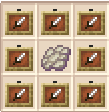 This recipe crafts an **Invisible Item Frame**, perfect for displaying Image Maps without visible borders.
### Obtaining Phantom Membranes
Phantom Membranes can be purchased at **Hollow's Market**.
* Visit `/market` or `/sd`
* Purchase Phantom Membranes from player shops
***
## Managing Image Maps
| Command | Description |
| --------------------------------- | ---------------------------------------------------- |
| `/imageframe list` | View your existing Image Maps. |
| `/imageframe get ` | Get a copy of an Image Map. |
| `/imageframe get combined` | Get the Image Map as a combined item. |
| `/imageframe info` | View information about the Image Map you're holding. |
| `/imageframe refresh ` | Refresh an image from its source. |
| `/imageframe delete ` | Delete one of your Image Maps. |
***
## Common Uses
* 🏠 Base decoration
* 🛒 Shop advertisements
* 🎨 Artwork
* 📋 Signs and information boards
* 🎉 Community projects
* 🖼️ Photo galleries
***
## Rules
All uploaded images must follow server rules.
The following content is not allowed:
* NSFW content
* Offensive or hateful imagery
* Harassment targeted at players
* Content that violates server rules
Images that violate server rules may be removed without notice.
***
## ❓ Frequently Asked Questions
Run an ImageFrame create command and a link will be sent to you in chat. Open the link to access the ImageFrame Web UI and upload your image.
PNG, JPG/JPEG, and WEBP images are supported.
Yes. Larger dimensions use more maps and item frames.
Yes. Use `/imageframe refresh ` to refresh an image from its source.
Invisible Item Frames hide the frame itself, creating a cleaner and more seamless appearance for Image Maps.
This recipe crafts an **Invisible Item Frame**, perfect for displaying Image Maps without visible borders.
### Obtaining Phantom Membranes
Phantom Membranes can be purchased at **Hollow's Market**.
* Visit `/market` or `/sd`
* Purchase Phantom Membranes from player shops
***
## Managing Image Maps
| Command | Description |
| --------------------------------- | ---------------------------------------------------- |
| `/imageframe list` | View your existing Image Maps. |
| `/imageframe get ` | Get a copy of an Image Map. |
| `/imageframe get combined` | Get the Image Map as a combined item. |
| `/imageframe info` | View information about the Image Map you're holding. |
| `/imageframe refresh ` | Refresh an image from its source. |
| `/imageframe delete ` | Delete one of your Image Maps. |
***
## Common Uses
* 🏠 Base decoration
* 🛒 Shop advertisements
* 🎨 Artwork
* 📋 Signs and information boards
* 🎉 Community projects
* 🖼️ Photo galleries
***
## Rules
All uploaded images must follow server rules.
The following content is not allowed:
* NSFW content
* Offensive or hateful imagery
* Harassment targeted at players
* Content that violates server rules
Images that violate server rules may be removed without notice.
***
## ❓ Frequently Asked Questions
Run an ImageFrame create command and a link will be sent to you in chat. Open the link to access the ImageFrame Web UI and upload your image.
PNG, JPG/JPEG, and WEBP images are supported.
Yes. Larger dimensions use more maps and item frames.
Yes. Use `/imageframe refresh ` to refresh an image from its source.
Invisible Item Frames hide the frame itself, creating a cleaner and more seamless appearance for Image Maps.